Use the Dashboard
The dashboard is your first-stop control panel for what needs attention now.
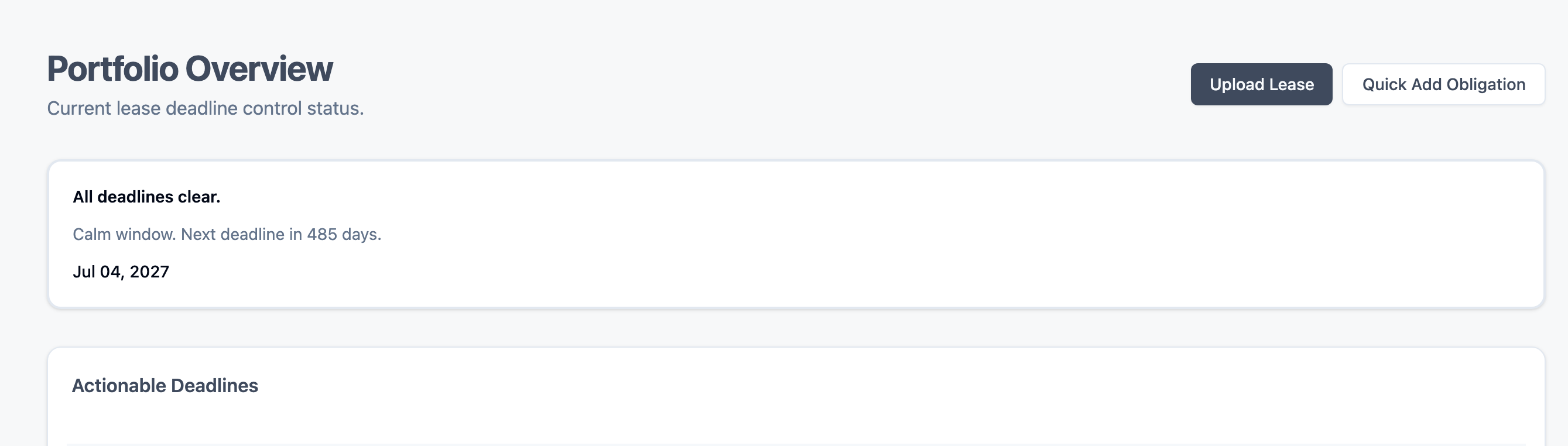
What You See
Open the home page after sign-in to view Portfolio Overview.
You will see:
- A top action card that summarizes current deadline risk
- A
Portfolio posturecard when preparation/notice-window signals exist - An
Actionable Deadlinestable for overdue and due-soon work
Why Your Dashboard Might Look Empty
If no obligations exist yet, the top card shows No active obligations yet. and the actionable table has no rows.
To populate the dashboard, create at least one obligation.
Create an Obligation (to unlock actionable items)
- On the dashboard, select
Quick Add Obligation. - Enter the required details and set a due date.
- Save.
For fastest visibility in Actionable Deadlines, use a due date in an actionable stage (for example, due soon or overdue).
Use the Action Card
The top card is clickable and opens the most relevant obligations view:
- Overdue items open the overdue list
- Due-soon items open the due-soon list
- Clear state opens the full obligations list
This gives you one-click routing from summary risk to the exact working queue.
Work the Actionable Deadlines Table
In Actionable Deadlines you can:
- Scan property, obligation type, due date, and risk badge
- Open row actions to mark complete (when available)
- Jump to
View LeaseorEdit Obligation
Tips
- After uploading a lease, confirm at least one obligation was generated so the dashboard can track it.
- If your list is long, use the filter box to find property names quickly.
Continue to: Track Deadlines