Track Deadlines
Use Obligations as your operating list for upcoming actions.
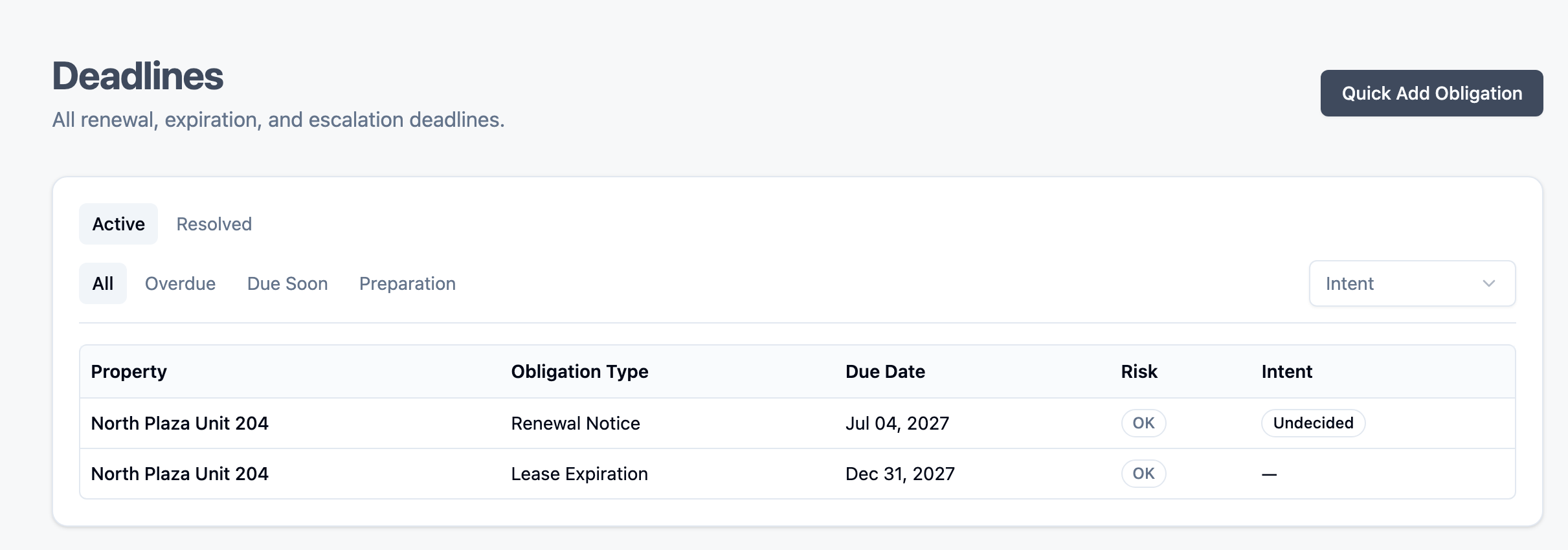
Where to Work
- Open
Obligationsfrom the top navigation. - The page highlights active obligations and resolved history.
Read an Obligation
Look for these core fields:
- Due date
- Obligation type (
Renewal Notice,Lease Expiration, etc.) - Current stage/status
- Related property and lease context
Deadline Logic You Should Expect
- Due dates are date-based (not time-of-day reminders).
- Upcoming and overdue states are deterministic from saved dates.
- If a deadline was manually changed, original calculated context is still retained.
- Renewal prep windows are fixed in the product and not custom per obligation.
- Stage progression follows a fixed order and does not skip forward arbitrarily.
Complete an Obligation
- Open the relevant obligation action.
- Mark the item complete with the correct completion reason.
- Confirm that it moves into resolved history.
If a date looks wrong
- Re-check lease end date and notice period.
- Verify whether an override is active.
- Use the renewal dialog for correction only when appropriate.
Tips
- "Do not renew" is treated as final for the cycle in v1 workflows.
- If an obligation is already completed, core cycle details are protected by append-only rules.
Continue to: Handle Renewal